Pages

Showing posts with label App. Show all posts

Tuesday, 25 October 2016

How To Hide Any Files In Android Phone Without Any App

Today i am going to share a trick with you about hiding files in our Android Mobile So, read the full post carefully.

we all use many external apps to hide our personal files ( video, images, audio, pdf, or documents )
and there are many apps available on playstore like safe gallery, vault , and many more...
but this apps consumes most of RAM & MEMORY of our mobile and due to this our mobile gets slow... and get hang and many problems happens.

But now don't worry now hide your any files in your android mobile without using any app, you can hide any file in your android mobile by using its own file manager, so how its works read carefully.
so every file have its FORMAT like mp4, mp3, jpg, png, pdf , so the format of the file in the name of the file is very important if you remove the format from the name of the file so it will become un supported, For Exp. if you want to hide any images so the format of the images is jpg or png so just remove the format from the file name, like if the file name is mylove.jpg so remove the .jpg from the file name and now your file is hide from your mobile gallery and the file will not access, so now if you want to access the file just rename the file with its FORMAT, like you remove the format from the file name now just rename the file with its FORMAT and once you rename the file with its FORMAT then the file will access. Like this you can hide any file by just removing the FORMAT from its name..

So this is the trick to hide any file in our Android Mobile without using any app

See The Video To Hide Your Files In Android Mobile

Sunday, 9 October 2016

How To Make Your Nokia Phone To Start Minimizing different app

first to start with this tutorial on how to make your Nokia phone to start minimizing different s app in form of Symbian phone there are some required files and apps to be use to start the processing, Scroll down to check the required files&apps

Required files&apps

1. Laptop/PC

2. Phoenix Service suite

3. Installed Nokia PC Suite

4.RM 

5. USB Cable (Compatible with the phone)

 Tutorial

.First thing to do is to download the Phoenix Service Suite and install in on your Laptop or PC

.Secondly download and install Nokia Ovi Pc suite then dial  *#0000#  on your mobile phone to get it RM version

.After dialing the code you will see something like this "RM_902" or any other number but must be  three in Number

.Now google search the number RM_902 depending on the RM number  your phone display. Let it be like this e.g RM_902.ppu then download it on your laptop/pc

.After downloading the file connect your phone to your laptop Via USB Data-cable

.Select Nokia suite on your phone when prompted

.Nokia suite should appear on your laptop/PC. Close it

.Now run the phoenix to run your download file

.After some minute the process will complete and immediately your phone will restart and start functioning like Symbian phone.


Wednesday, 28 September 2016

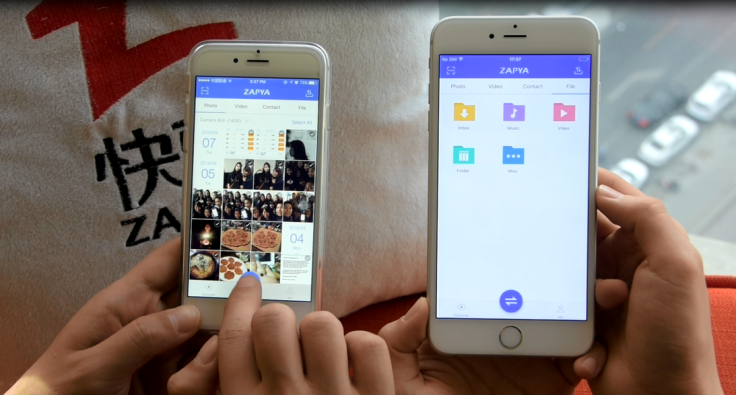
Transfer files between iOS devices using Zapya

Zapya is the latest file sharing application developed by Dew Mobile Inc and can be downloaded from Google Play store and from the App store for iDevices. Zapya can be used to transfer any kind of files between various different platforms. The speed of transfer reaches up to more than 200 times that of bluetooth. The best part of Zapya is that you do not need any sort of internet connection to transfer files which means you get to share files and save money on it as well.


Share files without any limit so you do not need to trim any of your files before transferring them. Nor do you need any cables and wires to transfer files now. In this blog I will be giving you a step by step tutorial on how to use Zapya to transfer files between iPhones. To read more on Zapya click here.

How to share files within iOS devices using Zapya?

Step One - Make sure you have downloaded the latest Zapya from the App store. The latest version is V 4.4.0 and can downloaded on devices having iOS 7.0 upwards. Also make sure the device that you want to share the file to also has the latest Zapya downloaded on it.

Step Two - Launch the Zapya application and tap on to the Connect button. It is placed at the bottom of the screen. When you tap on Connect it will start looking for devices nearby.


Step Three - The application will show you a list of devices nearby after scanning. You need to select the device that you want to share with.


Step Four - Once you have connected with the iDevice that you want to share with, now it is time to select the content you want to share. And then press Send. The Send button is also placed at the bottom of the screen and is blue in color.

Thursday, 15 September 2016

Install ADB on your Android

ADB also known as the Android Debug Bridge is a set of utilities that come with the Android SDK of Google. Using the ADB you can do various things with your device connected to your PC with a USB cable. You can copy files and manage them, install applications or uninstall applications, run commands on your device and a lot more. Things like backing up and restoring your Android smart phone or tablet requires you to have ADB drivers installed.


In this tutorial I will be telling you how you can install ADB on your Android. To read more on ADB Drivers for Android click here.

First, you need the Android SDK from Google

Go to the Android Studio download page and download just the command line tools. You will find this at the bottom of the page. These tools consist of the ADB drivers as well. Download the compressed file and extract and save the file wherever you want.

Second, you run the EXE file

You will see a window like the one shown below. You need to un check everything on the list except Android SDK Platform Tools.
In case you own a Google Nexus Smart Phone then you might as well check the Google USB Driver as well to install the latest drivers for your device. Install that. Close the window once its done.


Third, you need to enable USB debugging

To do this, go to Settings ==> About Phone ==> Tap on Build no 7 times
This will enable Developer Options on your device. Go to Developer Options and Enable USB Debugging.


Finally, You can test your ADB drivers.

Open the folder where you extracted the SDK Tools into. There will be a sub folder in that called Platform tools. Open it. Then hold the shift button and right click together on the white are in the folder. Click on Open Command window here.


Connect your device with the PC and run this command.
"adb devices"
You should see the following window with your device in the list.


Note - If your device is connected but you do not see it in the list you will have to install the latest USB drivers for your device on your PC.

Tuesday, 9 August 2016

Restore your device to previous backups made using Mobogenie


Mobogenie is a global application that allows you to gain access to various other applications if you are an android user. It is something like the Google Play Store from where you can download various applications and it also allows you to manage your Android device using your PC. Which means you can download it on your PC and connect your device with it to manage the applications on your device. You can install applications, uninstall them, make back ups, restore back ups and do much more.


Versions of Mobogenie

Mobogenie is truly like a genie for your Android device. It comes in two versions and can be downloaded directly from their website.

Mobogenie for Android - the latest version is V 3.0 and comes in a pro version as well as a Beta version. It supports Android 5.0 as well.

Mobogenie for PC - the latest version of Mobogenie for PC is V 3.3 and can support Android 5.0 as well.

Features of Mobogenie


  • You can download and install applications with just one click. It is completely free to use and you get to download paid as well as free applications.
  • The 12 Mobogenie editors sit and pick out daily recommendations for you based on what you like making it easier for you to download applications.
  • It supports 2G/3G and WiFi networks.
  • It has support in different languages for more than 10 countries so in case you are stuck somewhere you know you can find help.
  • Use Mobogenie for PC to backup all of your data in your device using just one click.
  • It has a very smart and easy to use interface. To learn more on Mobogenie visit this website.

How to restore backups using Mobogenie?

Connect your Android device with your PC. Make sure you have had a back up made through Mobogenie.

Launch the Mobogenie app and wait till your device gets connected to it. On the home page you will see a Restore Tab. Click on it.

Select the folder where you have stored the backup that you would like to restore your device to.

Click on Restore and wait till the restoration process is complete. Do not disconnect your device until the process is done.

Tuesday, 12 April 2016

Get Huge Discounts on Medicines Via Ojas App


The high technology has made everything so easy these days. You can now order your medicines online by simply uploading the prescription. Companies are also providing huge discounts on medicines. Discounts are liked by everyone and when it is on medicines then things are totally different because medicines usually come with high printed price. You can now avail amazing discounts on medicines through Ojas App. Before buying medicines at cheap prices you need to take care of few things such as if the distributor is genuine, how they work and what you need to look for.

Ojas App


How do they work?

You can now get lucrative discounts on medicines as various distributors are offering safe and approved medicines to customers at relatively low price than market. The companies carrying each sort of much needed prescription medications like medicines for mental health issues, thyroid problem, diabetes, blood pressure and much more. You can get discount on medicines from various medicine apps and save huge money.

You need to make your search quite high when you rely on such medicine stores online as there are many companies that are unreliable as well as lack quality client service. Affordable medicines are provided by registered medicine company and they offer viable and convenient alternative.

Get lucrative discount:


You can now get lucrative discounts on ordering medicines say around 10% to 15% on various OTC products. Ojas App offers super fast delivery to your footsteps. You simply need o keep a track on the offers put up every now and then by these companies and app, to avail such discounts. The services offered by these medicine companies are extremely high as they deliver medicines on your given time and to your footsteps. You will get discount on variety of products and not just on medicines.

Wednesday, 13 January 2016

How to send Installed apk Android file


On Android devices we can not only restricted to share images,videos, audio's .we can also share applications installed on your phone or your tablet. A simple way of sending your applications to another Android device without having to root yours is by using a third-party application available on Google Play. This app is not only helps to send app to another device it also enables us to make backup of  apk file installed in  our mobile or tablet directly through the official website of  android application.

Step 1 of 2:

Install app backup from the google play
  1. ·        Launch the google play app installed in your device·       
Appbackup, send installed  apk,backup,download apk,backup app
  •                   Search for the appbackup
Appbackup, send installed  apk,backup,download apk,backup app
·        Click on the like icon as shown above to to download apk.
           ·        Install the app.
Step 2 of 2: Make backup and share.

  •   Launch the appbackup apk  you will see the  list of  apps installed in your device.
        
Appbackup, send installed  apk,backup,download apk,backup app
  •     Check the box and click on backup.
Appbackup, send installed  apk,backup,download apk,backup app
  •         This will extract the copy of apk file in your sd card or internal storage.
  •      Navigate  through file manager /sdcard/app  backup restore.
  •        Now you can send it  simply like you share your images and videos through bt 
   Related Search Items:-
                 How to download apk
                 Phone app
                 Send app 
                 Send app through Bluetooth
                 Make backup
                 Backup your installed app
                 Send your installed app
                 Share your installed app to other devices
                 App backup for android 
                 How to make backup in android
                 Transfer your apk to others