Pages

Tuesday, 10 May 2016

10 Do's & Don'ts for your trip to Oman


Andrea spent a month working in Oman, so we feel we must give you some practical tips to be really ready for your trip to Muscat and Oman in general. You probably won't be fully aware of these things until you learn them on the field, especially if it's your first time in a Middle East country.


10 Do's & Don'ts

  • DO remember you're in a muslim country, even if the locals are always nice and warm, you must respect their culture and traditions.

  • DO be careful when applying for the Visa at the airport. The girls at the counter will try to make you pay almost 20% more.

  • DO rent a car. The city is really wide and you will definitely need a car to move around. Furthermore, the public transportation consists in a couple of buses and the taxi fares are kinda high. 
  • DO use the car for daily trips from Muscat to the Wadis or Jebel Shams and Jebel Akhdar. We will talk about that next time.

  • DO pay attention while driving. The country has a super high accidents rate, but if you pay a bit more of attention you'll be safe. DO NOT pass with a red light, it could cost you some time in jail.

  • DO dress appropriately, especially women. On public beaches, it's better to cover yourself a bit more than usual. Normally people will just stare at you, but never say never. In a taxi, a friend of mine has been harassed. Be careful

  • DO behave when in public with your partner, no kisses, no touching. Holding hands seems allowed though.

  • DO NOT take pictures of people without consent. They won't like it. Women will cover their faces and you will feel incredibly sorry for them.

  • DO bargain when possible. Just because you're a foreigner, in souq's they will try to make you pay an higher price.
Crowded Muttrah souq, Muscat


We'll leave you with the song of the day.

Since many people are leaving for Iceland this summer, we'll be talking about it soon! Stay tuned

Fix Common Computer Problems


Common PC issues
Personal Computer
Right now I'm going to give you some useful tips to troubleshoot some of the most common computer problems.

Computer Won't Start or Computer is not starting

  • Check the computers power source and connections.
  • Make sure that power cord is connected to the computer and into source of power. Test the power source. To do that, connect your phone to phone charger and then plug your phone charger into power source and check whether it's alive or not. If you source of power is not alive then try another power outlet. If power outlet is working may be the problem with power cord or Faulty SMPS. 
  • Push the power button or power switch and listen for the computers cooling fan.
  • Listen and watch for beeps, flashing lights on the front panel of PC. If you heard any beep then it may indicate a problem with Memory or Hard Disk.

To know more How to troubleshoot RAM (Random Access Memory) or Hard Disk

  • Watch on screen message before windows is loaded. These messages could warn you about hardware failure or error resulting starting your PC.
  • If still your PC won't start then do some advanced troubleshooting by opening the side case of your computer and unplug the 24 pin cable as well as 12v 4 pin cable which came from SMPS and re-plug them and check weather your PC working or not. If problem is not resolve then it seems your motherboard or SMPS is need to be repair by chip level repair expert or replace.

Solve Basic Hardware Problems

Computer's Audio is not working
  • Make sure audio is note Mute.
  • Make sure Windows Audio service is started by accessing service.msc console.
  • Check with external speakers.
USB is write protected
  • Open notepad and copy & paste below command. Save notepad as "Name.reg" (Without quotation mark)
Windows Registry Editor Version 5.00

[HKEY_LOCAL_MACHINE\SYSTEM\CurrentControlSet\Control\StorageDevicePolicies]
"WriteProtect"=dword:00000000

  • After saving above code execute saved registry. If still USB is write protected then I'm sorry to say it's time to buy new USB.
Note: If you have any hardware problem issue please feel free to comment below.

Basic Windows Issues

NTLDR is missing

NTLDR missing
Windows XP
  • Boot your PC from Windows XP cd or USB.
  • After loading all files then "Press R".
  • Then type below two commands
          copy e:\i386\ntldr c:\
          copy e:\i386\ntdetect.com c:\
  • And restart your PC.
If you have any problem or suggestion regarding Hardware, Software, Network etc feel free to comment. These are just common computer problems. If you like my blog then share it with your friends and Sign UP for Email updates. 

Why is an explainer video good for your business?

A picture speaks a thousand words. You’ve heard that phrase many times so how true is it really? Pictures, especially moving, talking animated presentations, scream ‘Look at Me! Explainer videos are good for your business in exactly this way. They grab the attention of your potential clients or customers in both an engaging and educational manner.


What is an explainer video?

An explainer video is a short video clip which clearly shows the features, components and use of your business products or services. These videos that can be either a slider or animated video, use common components of text information, photos or cartooning, voice-overs, sound effects and background music.

How do they do that exactly?

  1. Grab the attention of the viewer by telling them in one to two minutes exactly who you are, what you do, and what you can offer in a captivating manner.
  2. Can educate your potential or current customer by explaining your product or service to them before they’ve purchased it. In other words, explainer videos help you communicate your product or service in an original, memorable and stimulating way.
  3. Using more than one medium, especially one as eye-catching as an explainer video, reaches your target market in a way that is above and beyond the norm that you see on static websites.
  4. It’s interesting to note that animation brings a nostalgic feeling to the viewer; everyone you know, including yourself and your staff, has watched Saturday morning cartoons. In other words, explainer videos or video marketing is a strategy that sends out your message in a medium that everyone can relate to.

Let’s face it, we live in an information-stimulation overload society. The great thing about explainer videos is the fact that your information is given to your potential client in two minutes or less. Therefore, not only does your explainer video engage and education your potential client or customer, it keeps their attention and sells them your message.

Thursday, 5 May 2016

How to Manage Your Documents In Windows


ankit, ankit nama, ankit nama blog,
Manage Your Documents in Windows - Ankit Nama Blog
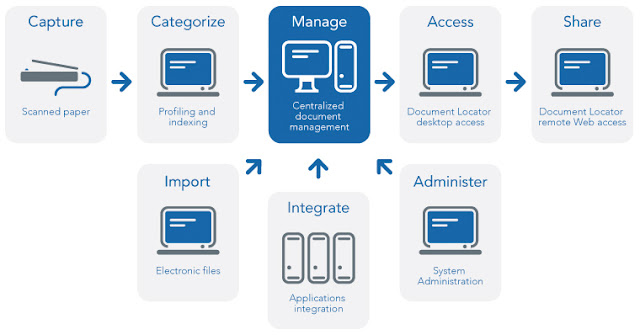
 After much research and analysis , we use Windows business as the best document management system FileHold recommend. We believed we FileHold document management system selected from a pool of dozens . Our whole methodology and document management systems to read for a more extensive list .
FileHold specially designed with Windows in mind. Software, which is loaded with impressive features, such as Windows Explorer uses the same file structure. This system is easy to adjust for staff creates. What makes the Windows computer using FileHold is appealing for small businesses that look the same and they are already accustomed to the feel of the programs that is. Filing structure the cabinet, drawer, folder and subfolder approach that incorporates Windows uses. Once installed, employees quickly get up to speed on how to use and navigate the system should be able to.
We were impressed with the system's clean interface. Other systems that are cluttered with icons and images, as opposed to, all you see when you log in the left hand side of the page below the search bar on the top of the document library. Filing, search and all documents are reviewed by the same page. Many of the other systems we examined force you to toggle back and forth between pages, depending on what you are working on.
We found to be extremely useful to system folders MyFileHold. These different cabinets and "preferred" documents, their checking - out files, drawers for alerts or reminders they are folders located on top of the general library, they recently accessed files and documents they recently added to the system . This document is currently being worked on and items that need immediate attention provides a quick snapshot.

1. Manage Files and Folders with File Explorer


Using your Windows 10 system to create information. Over time, we accumulated a lot of files stored on our hard disk. How Windows 10 (and in general Windows) This is an important part of a file system that manages how the files are stored and accessed on your computer is using. Part you and I, we like when we document files, audio files, as our computers, create, interact with, and the video file manager. This file is in the Windows Explorer. Over the years, this essential part of the Windows experience, quick release, in the Windows Explorer file manager has evolved from its roots as a file explorer and now for the first time was introduced in Windows 8 called.
ankit nama blog, ankit nama, best website designer
Manage Files and Folders with File Explorer - Ankit Nama Blog

2. Using File Explorer in Windows 10 


Click to view the files stored on your computer Explorer icon on your taskbar or Start> click File Explorer.
When you launch File Explorer in Windows 10, you are presented within the Quick Access window. Formally called favorites in previous versions of Windows; Here you most frequently accessed folders and you will see the files created.
File Explorer is used for a variety of tasks, management and organization of files and folders in addition, also such internal, attached storage, and optical drive of your computer for viewing and resources is used to manage.
Ankit Nama Blog

3. User Folder


Windows 7 and earlier versions, you can store a user folder directory and such documents, audio files, pictures, video and other types of data such as content into folders to organize your files was used. Some of these folders can still be accessed from the PC. Other folders that your user folder created by third-party applications can be part of the bread crumb menu can be accessed from within your user directory.

To do this, click the arrow in the address bar (see above) and you click your account name represented by the Users folder. Or, press key + R, then type:% userprofile% and hit enter.
Ankit Nama Blog

4. Change how Files are Displayed in Windows 10 File Explorer 


See how you can change the file using the View tab. When you activate this tab, you windows, files, change the layout of the current scene or view the various groups will hide a few things you see on the screen. Layout within the group, click one of the options available, how your files are displayed on the screen to change. You also confirmed by a hovering of the available options before you can preview the layout.

5. Go Back to a Previous Folder


If you want to navigate to the previous folder, you can either efficiently or bread crumb Recent Locations button menu a couple of ways you can use.
 
Ankit Nama Blog


Recent Locations menu, you click, you return quickly to a previously working directory along the way can go without going through multiple directories.

Bread Crumb Menu introduced similar capabilities in Windows Vista, for example, you can easily navigate to a folder with a folder path can offer. So, if there are sub-folders within a folder, you can quickly jump to any folder within that path now.

6. Organizing Files and Folders


Windows 10 system files on your computer a lot, you'll want to organize them. So if you have made recent files or files need to see old or certain files need to be stored elsewhere, you can do so easily. View tab sorting options for how files are displayed provides. Here, I have chosen to settle my files by type. When I select this view, I can see all your Microsoft Word and Excel documents and workbooks.
ankit nama, ankit nama blog, ankit nama seo
Organizing Files and Folders - Ankit Nama Blog

7. Copy, Pasting a File or Folder


A copy of the most common operations for users who creates a replica of the original file. To copy a file, you copy the file to the Home tab, click Copy to.

You can just as easily copy or move a file without leaving your current location can. Organize within the group under the Home tab, click Copy or move buttons and is listed, select the location or select the location button and select the location.